 Scanbrix

Go Back
5 Reasons Your iPhone LiDAR Scans Aren’t Working in Revit
You scanned a room with your iPhone. Now you’re staring at a point cloud in Revit that’s useless. Here’s what went wrong and what to do about it. iPhone LiDAR scanning sounds like it should be simple. Apple puts a LiDAR sensor in every Pro model. You download a scanning app. You walk through a room. And then… you’re supposed to have usable data for Revit. In practice, most architects and designers who try this for the first time hit a wall. The scan looks fine in the app, but getting it into Revit as something you can actually design from? That’s where the frustration starts. After working with hundreds of architects and contractors who scan spaces with their iPhones, we’ve seen the same problems come up again and again. Here are the five most common ones and how to solve each.

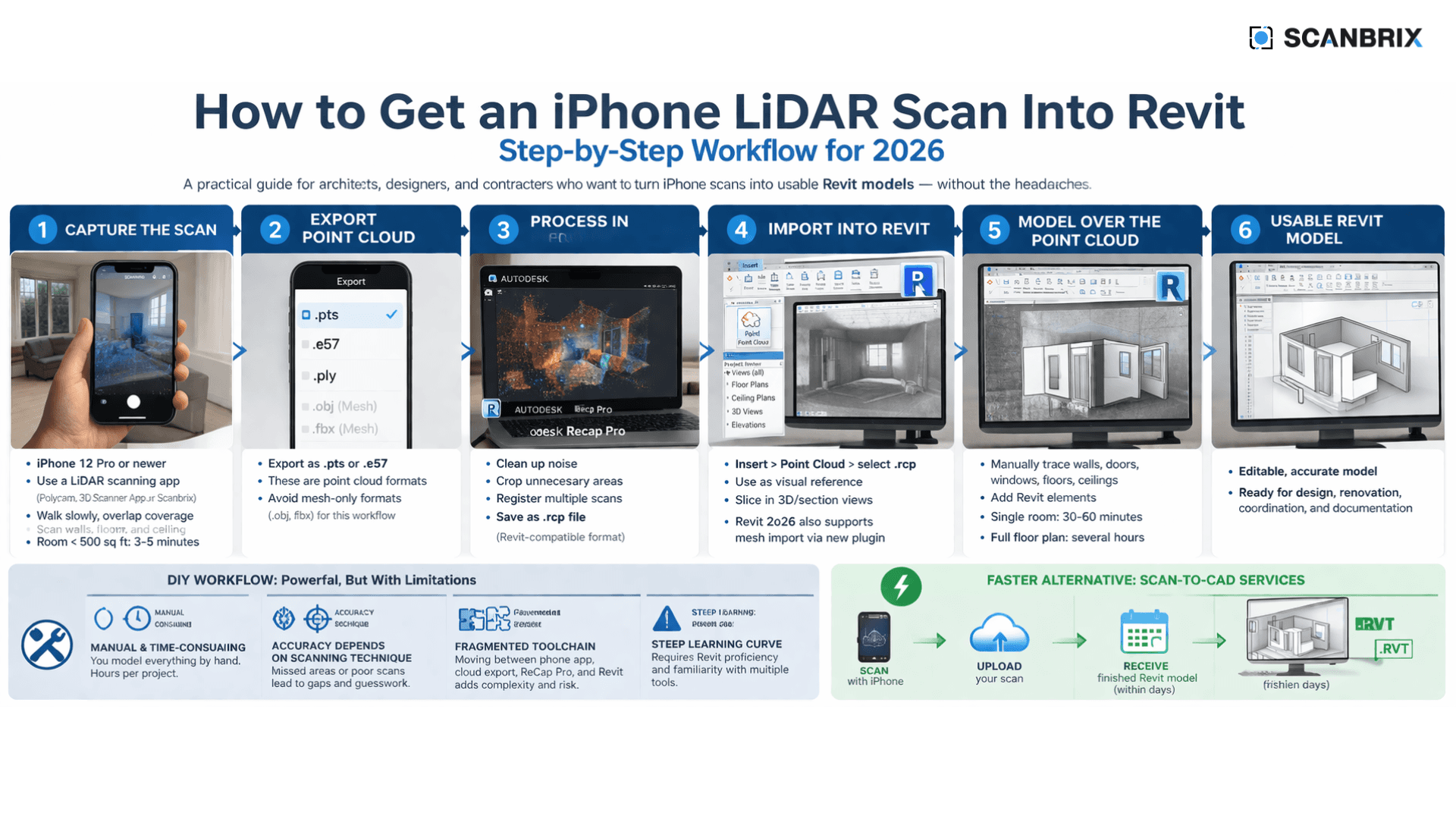
5 Reasons Your iPhone LiDAR Scans Aren’t Working in Revit (and How to Fix Them)
You scanned a room with your iPhone. Now you’re staring at a point cloud in Revit that’s useless. Here’s what went wrong and what to do about it.
iPhone LiDAR scanning sounds like it should be simple. Apple puts a LiDAR sensor in every Pro model. You download a scanning app. You walk through a room. And then… you’re supposed to have usable data for Revit.
In practice, most architects and designers who try this for the first time hit a wall. The scan looks fine in the app, but getting it into Revit as something you can actually design from? That’s where the frustration starts.
After working with hundreds of architects and contractors who scan spaces with their iPhones, we’ve seen the same problems come up again and again. Here are the five most common ones and how to solve each.
1. You Exported the Wrong File Format
The Problem
You scanned a room, exported a .obj or .fbx file, tried to open it in Revit, and nothing happened. Or you got an error. Revit doesn’t natively import mesh files like .obj or .fbx — it wants point cloud data in .rcp or .rcs format.
This is the single most common mistake. Most scanning apps default to exporting mesh formats because they’re popular for 3D printing and visualization. But mesh files and point clouds are fundamentally different data types, and Revit’s point cloud tools are built for the latter.
The Fix
When exporting from your scanning app, look for point cloud formats: .e57, .pts, or .ply. These contain the raw 3D coordinate data that ReCap Pro can convert to .rcp for Revit. If your app only exports mesh formats, you’ll need to either switch apps or use a conversion tool like CloudCompare to extract point data from the mesh.
Apps that export Revit-friendly formats: SiteScape exports .rcp and .e57 directly. Polycam and 3D Scanner App export .e57 and .pts. Scanbrix sidesteps the issue entirely by delivering a finished .rvt model.
2. Your Point Cloud Has Gaps and Noise
The Problem
You successfully got a point cloud into Revit, but it’s full of holes. Entire walls are missing. The ceiling is patchy. There are random floating points where nothing should exist. When you try to trace walls over the point cloud, you’re guessing half the time.
This usually comes down to scanning technique. iPhone LiDAR has a limited range (roughly 5 meters) and works best on matte, opaque surfaces. If you moved too quickly, didn’t overlap your coverage, or scanned a room with large glass surfaces, mirrors, or shiny floors, the resulting point cloud will have significant gaps.
The Fix
First, slow down. Walk at about half the speed you think you should. The LiDAR sensor captures frames at a fixed rate, and faster movement means fewer data points per surface area.
Second, scan each surface from multiple angles. Don’t just walk down the center of a room — move closer to each wall and scan it directly, then step back and capture the broader context. Overlapping coverage is what fills in the gaps.
Third, be strategic about reflective surfaces. If a room has floor-to-ceiling windows, scan from an angle rather than head-on. Avoid including mirrors in your scan path — the LiDAR will register the reflected geometry as a phantom room behind the glass.
If you’re consistently getting noisy scans, consider capturing multiple overlapping scans of the same space and registering them together in ReCap Pro. This can significantly improve coverage and reduce noise.
3. The Scale Is Off When You Import Into Revit
The Problem
Your point cloud imported fine, but the dimensions are wrong. A room you measured at 12 feet wide shows up as 11.3 feet in Revit. Or worse, the entire model is in the wrong unit system, everything appears microscopic or enormous.
Scale issues happen for several reasons. Some scanning apps export in meters while your Revit project is set to feet. Photogrammetry-based scans (as opposed to LiDAR) often lack true scale entirely and need manual calibration. Even LiDAR scans can drift over longer capture sessions, gradually accumulating small errors that add up.
The Fix
Always check your unit settings. Make sure the scanning app, ReCap, and Revit are all working in the same unit system. When in doubt, export in meters and convert in ReCap — it’s the most universal format.
More importantly, always take reference measurements on site. Before you leave, measure 3–5 key dimensions with a tape measure or laser distance meter: room width, door openings, and window heights are good choices. Use these to validate your scan. In ReCap, you can use the measurement tool to compare your reference dimensions against the point cloud and identify any drift.
If you’re using a scan-to-CAD service like Scanbrix, you can submit reference measurements alongside your scan. The modeling team uses these as ground truth to calibrate the final model, which eliminates the scale-drift problem.
4. You Have a Point Cloud, but No One to Model It
The Problem
This is the pain point people don’t always see coming. You successfully scanned a space, processed the point cloud, imported it into Revit… and now you’re staring at a cloud of colored dots. The point cloud is a reference, not a model. You still need to manually trace every wall, place every door and window, set every ceiling height, and build out the Revit model element by element.
For a single room, this takes 30 minutes to an hour. For a full residential floor plan, it can take 4–8 hours, depending on complexity. For small firms or solo practitioners without a dedicated BIM modeler, this is a serious bottleneck.
The Fix
If you have the Revit skills and the time, there’s no shortcut here, the manual modeling step is a core part of the DIY scan-to-BIM workflow. Using Revit’s snapping tools and section views through the point cloud can speed things up, and Revit 2026’s new mesh import capabilities help with visualization.
But if your time is better spent on design than on modeling existing conditions, outsourcing this step is the practical answer. Services like Scanbrix exist specifically to handle this bottleneck. You scan, upload, and receive a finished Revit model, walls, floors, ceilings, doors, windows, without touching ReCap or tracing a single wall.
The economics often make sense even for firms with in-house Revit capability. If it takes your team 6 hours to model a scan at a loaded billing rate, and a service delivers the same model for a fraction of that cost in 1–2 days, the math favors the service.
5. The Whole Workflow Takes More Time Than It Saves
The Problem
You tried the full iPhone-to-Revit pipeline: scanning app, point cloud export, ReCap processing, Revit import, manual modeling. And after all that, you realize it took you nearly as long as doing a traditional field survey with a tape measure and modeling from scratch. The promise of scanning was speed. The reality was a chain of software tools, file conversions, and troubleshooting.
This is especially common on first attempts, but even experienced users find the multi-tool pipeline slow and fragile. Each handoff between software is a place where something can go wrong, an incompatible format, a failed conversion, a corrupted file.
The Fix
The underlying issue is that the traditional scan-to-Revit workflow was designed for professional terrestrial laser scanners and dedicated scanning technicians. Retrofitting that workflow for an iPhone app creates friction because the tools weren’t designed to work together seamlessly.
The fix is to simplify the pipeline. For many renovation and interior projects, you don’t need the full point-cloud-to-ReCap-to-Revit chain. Instead, you can use an app like Scanbrix that compresses the workflow into two steps: scan the space and receive a model. No ReCap. No manual modeling. No troubleshooting file format compatibility.
This doesn’t mean the DIY workflow is worthless, it’s essential for complex commercial projects, large sites, and situations where you need sub-centimeter accuracy from terrestrial scanners. But for the typical renovation, interior design project, or as-built documentation job, a streamlined scan-to-CAD service is the fastest path to a usable Revit model.
The Bottom Line
iPhone LiDAR scanning is genuinely powerful technology for architecture professionals. The hardware is good enough for most interior documentation work, and it’s already in your pocket. But the gap between “good scan” and “usable Revit model” is wider than most people expect.
The good news is that you have options. You can invest in learning the full DIY pipeline for maximum control, or you can use a service that handles the heavy lifting and delivers a finished model. Either way, understanding these five common pitfalls will save you hours of frustration.
Skip the Pain Points Entirely
If you’re ready to try the faster path, download Scanbrix for free and scan your next project space. Your first scan-to-CAD model is on us, so you can see exactly what a design-ready Revit deliverable looks like before you commit to anything.