 Scanbrix

Go Back
How to Get an iPhone LiDAR Scan Into Revit
If you’re an architect or designer who uses Revit, you’ve probably seen the buzz around iPhone LiDAR scanning. Every iPhone Pro since the iPhone 12 Pro has shipped with a LiDAR sensor, and the idea of walking into a room, scanning it with your phone, and ending up with a usable Revit model is incredibly appealing.

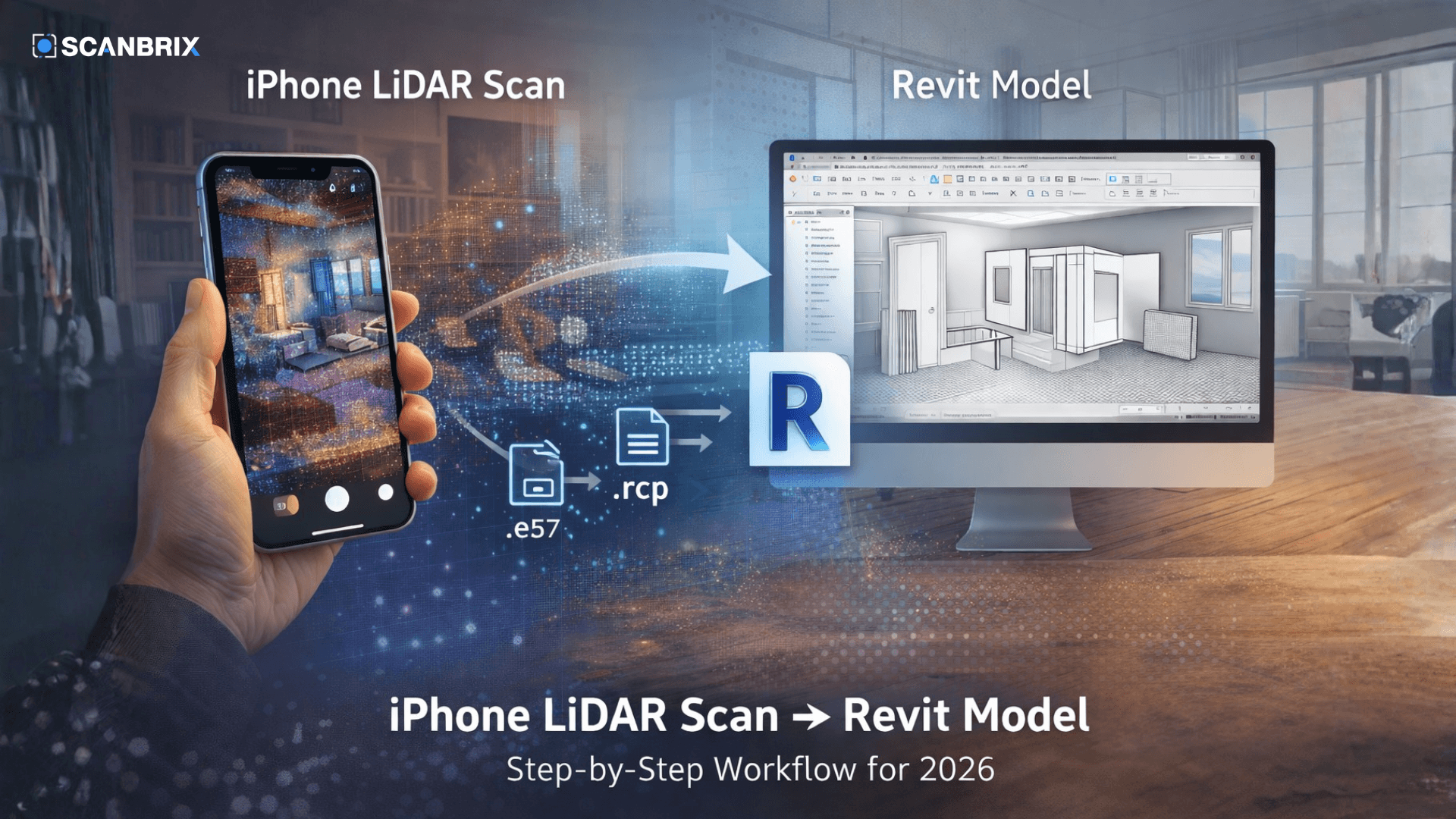
How to Get an iPhone LiDAR Scan Into Revit (Step-by-Step Workflow for 2026)
A practical guide for architects, designers, and contractors who want to turn iPhone scans into usable Revit models — without the headaches.
If you’re an architect or designer who uses Revit, you’ve probably seen the buzz around iPhone LiDAR scanning. Every iPhone Pro since the iPhone 12 Pro has shipped with a LiDAR sensor, and the idea of walking into a room, scanning it with your phone, and ending up with a usable Revit model is incredibly appealing.
But if you’ve actually tried it, you know the reality is messier. There’s a gap between “I captured a cool 3D scan on my phone” and “I have an as-built model I can actually design from in Revit.”
This guide walks you through the full workflow, from scanning a space with your iPhone to getting that data into Revit as something genuinely useful. We’ll cover the DIY point-cloud route, the limitations you’ll hit, and a faster alternative that skips the painful middle steps entirely.
What You Need to Get Started
Before you scan anything, make sure you have the right hardware and a plan for what you want to achieve.
Hardware Requirements
You’ll need an iPhone with a LiDAR sensor. That means an iPhone 12 Pro or newer (any Pro or Pro Max model), or a 2020+ iPad Pro. The LiDAR sensor on these devices measures distances with infrared light pulses and generates depth data at roughly 1–2% accuracy for interior spaces, not survey-grade, but more than sufficient for renovation design, space planning, and as-built documentation.
Software on Your Phone
You’ll need a scanning app. The main options include Polycam, 3D Scanner App, and Scanbrix. Each handles scanning differently, some export point clouds, others export mesh files, and some (like Scanbrix) handle the entire pipeline from scan to finished CAD model. We’ll discuss the differences later.
Software on Your Desktop
If you’re going the DIY route, you’ll likely need Autodesk ReCap Pro to process point cloud files before importing them into Revit. ReCap converts formats like .pts, .e57, and .ply into Revit-compatible .rcp files. You’ll also need Revit 2024 or later for the best point cloud handling — though Revit 2026 added a new reality-capture mesh plugin that makes working with scanned data noticeably smoother.
The DIY Route: iPhone Scan → Point Cloud → Revit
This is the most common workflow people attempt first. Here’s how it works, step by step.
Step 1: Capture the Scan
Open your scanning app and slowly walk through the space. Move steadily — don’t rush, and overlap your coverage. Most apps give you real-time visual feedback showing what the sensor has captured. Aim to scan each wall, floor, and ceiling surface. For rooms under 500 square feet, you can usually capture everything in 3–5 minutes.
Pro tip: Take a few manual measurements with a tape measure or laser distance meter before you leave the site. You’ll use these as reference dimensions to validate your scan later.
Step 2: Export a Point Cloud File
Most scanning apps let you export in formats like .ply, .pts, .e57, or .obj. For the Revit workflow, you want a point cloud format — .pts or .e57 are the most common. Avoid mesh-only exports (.obj, .fbx) if your goal is to import into ReCap, since ReCap is designed for point clouds.
Step 3: Process in ReCap Pro
Import the point cloud file into Autodesk ReCap Pro. ReCap lets you clean up noise, crop out irrelevant data (like furniture you don’t care about), and register multiple scans if you captured the space in segments. When you’re done, save the project as an .rcp file. This is the format Revit can read natively.
Step 4: Import into Revit
In Revit, go to Insert > Point Cloud and select your .rcp file. The point cloud shows up in your model as a colored 3D reference. You can slice through it in section views, set visibility overrides, and use it as a trace guide. Revit 2026 also supports importing mesh data directly through a new plugin, which can simplify some workflows.
Step 5: Model Over the Point Cloud
This is where the real work begins. The point cloud is a visual reference — it’s not a Revit model. You still need to manually trace walls, place doors and windows, set floor-to-ceiling heights, and build out the model element by element. For a single room, this might take 30–60 minutes. For a full residential floor plan, plan on several hours.
Where This Workflow Breaks Down
The DIY point-cloud-to-Revit workflow is powerful, but it has real limitations that are worth understanding before you commit to it.
First, the modeling is still manual. The point cloud gives you a reference, but you’re building every Revit element by hand. That’s hours of work per project, and it requires someone who’s proficient in Revit.
Second, accuracy depends on your scanning technique. If you moved too fast, missed a wall, or scanned in poor lighting, you’ll see gaps and noise in the point cloud. Those gaps become guesswork when you’re modeling.
Third, the toolchain is fragmented. You’re moving between a phone app, a cloud export, ReCap Pro, and Revit. Each transition is a potential point of failure — incompatible file formats, lost scale data, or misaligned coordinate systems.
For firms that do this regularly, the workflow is manageable. But if you’re an architect who just needs existing conditions for a renovation project, the overhead can feel disproportionate to the value.
The Faster Alternative: Scan-to-CAD Services
A growing number of platforms now offer a different model: you scan the space on your iPhone, upload it, and get a finished CAD or Revit model back within a few days, no ReCap, no manual modeling on your end.
This is the approach Scanbrix takes. You scan a room using the Scanbrix iOS app (free to download, works on any LiDAR-equipped iPhone or iPad), then order a professionally modeled deliverable in Revit (.rvt), SketchUp (.skp), or AutoCAD (.dwg) format. The turnaround is typically 1–2 business days.
The advantage here is simple: you skip the entire middle part of the workflow. No point cloud processing, no ReCap, no hours spent tracing walls in Revit. You walk into a space, scan it in minutes, and get back a design-ready model.
For architects working on home or office renovation projects, interior designers documenting existing conditions, or home service professionals who need quick as-builts, this can save a full day of work per project.
Which Approach Is Right for You?
Both workflows have a place depending on your needs.
The DIY point-cloud route makes sense if you already have ReCap Pro in your Autodesk subscription, you have team members skilled in Revit modeling from scan data, and you need granular control over every element in the model. It’s also the only option if you’re working with extremely complex commercial spaces that require survey-grade terrestrial scanners rather than phone-based LiDAR.
The scan-to-CAD service route makes sense if you want existing conditions fast without tying up your team in modeling work, you’re working on residential or mid-size commercial interiors, or you don’t have a dedicated BIM specialist on staff. It trades some control for a massive time savings.
Many firms use a combination — DIY for projects where they need full control, and a service like Scanbrix for the routine existing-conditions work that doesn’t justify hours of manual modeling.
Scanning Tips That Apply to Either Workflow
Regardless of which path you take, these tips will improve your scan quality:
Walk slowly and steadily. The LiDAR sensor updates at a fixed rate, moving too fast creates gaps. Think of it like spray painting: slow, even passes.
Overlap your coverage. Make sure each wall surface gets scanned from at least two angles. This helps with depth accuracy and fills in shadows.
Scan in good lighting. While LiDAR works in the dark (it’s infrared-based), the RGB color data your phone captures alongside the depth data will be much better in well-lit conditions.
Take reference measurements. Even if the app claims high accuracy, grab 3–5 key dimensions with a tape measure. These serve as your ground truth for validating the scan. With Scanbrix, you can also share those reference measurements to improve overall accuracy of the model.
Avoid reflective surfaces if possible. Mirrors, glass walls, and highly polished floors can confuse the LiDAR sensor and create phantom geometry.
Ready to Try It?
If you’re a Revit user who’s been curious about iPhone LiDAR scanning, the best way to learn is to try it on your next project. Download a scanning app, pick a room, and see what you get.
And if you want to skip straight to a finished Revit model, try Scanbrix, your first scan-to-CAD order is free. Scan a space, upload it, and see how it comes back as a design-ready model.